Open the editor
- On the Mac, click the Treadle icon in the menu bar.
- In the popover, choose
Edit decks….
The editor opens on the Mac. Your edits are held until you press Save. Only then do they apply to paired iPads and iPhones, so you can rearrange a deck without disturbing what you are using. Before it saves, the editor shows what you are about to change.
Add a button
- Pick a deck, or create a new one.
- Add a button to the deck.
- Choose the button's action from the picker. Built-in actions are grouped by category. You can also choose one of these sources:
Shortcut: run one of your macOS Shortcuts. See Use a Shortcut as an action.Open App: bring an app to the front.Keystroke: send a key combination.URL: open a link.Custom: run a command you write. See Write your own command.
- Set a
Labelso you know what the button does. - Set an
Icon.
Choose a button's size
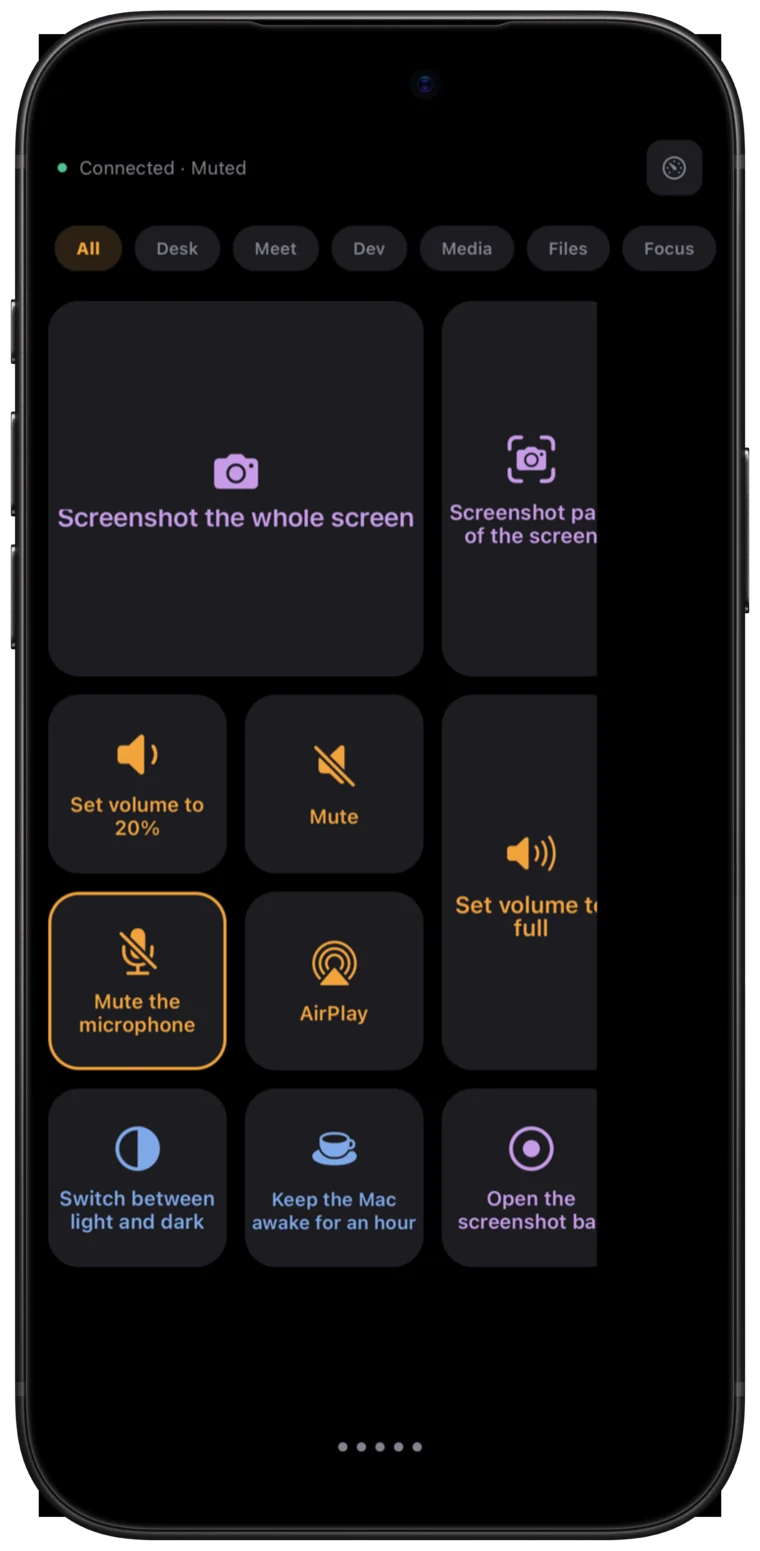
A button can be one of four sizes: 1×1, 2×1, 1×2 or 2×2. Draw the size on the little grid in the button's inspector. A bigger tile has room for a name beside the icon, a live value, or a now-playing block. The editor's preview shows the button at its real size, packed the way the iPad or iPhone will lay it out.
Lay out each device separately
Across the top of the editor is a row of devices: iPad Pro, iPad Air, iPad mini and iPhone. Pick one and the canvas previews the deck as that device shows it.
Each device keeps its own layout, with its own buttons, sizes and order, because a tile that looks right on a 13-inch iPad Pro takes a much bigger share of an iPad mini screen.
- A device you have never edited mirrors the iPad Pro layout.
- The moment you change anything on that device, it becomes independent: it gets a one-time copy of the iPad Pro layout that you then tailor. Editing one device never changes another.
- To go back, use Reset to iPad Pro on that device.
For example, you might keep every button on the iPad Pro and trim the iPad mini to the ones you reach for most, leaving the Pro as it was.
Try it
Press the button on a paired iPad or iPhone. It should run on the Mac right away. If nothing happens, see A button does nothing when I press it.
Where to go next
- Give a control a value with toggles, levels and prompts.
- Add a ready-made set of controls with an action pack.
- Tie a deck to an app with app bindings.
On the free plan you keep the starter deck plus one deck of your own (you choose which when the trial ends). More than that is a paid feature. See What's free, what's paid.